Flash the Arduino with Dragonframe dmc-lite
The Arduino GIGA, not the shield itself, runs Dragonframe's dmc-lite firmware. It needs two matching sketches: dmc_m7 and dmc_m4. The older DFMoco sketch is different.
If your GIGA arrived configured, record its firmware version and input options before changing anything. The first prototype's installed firmware has not yet been recorded; this guide does not certify a pre-flashed image.
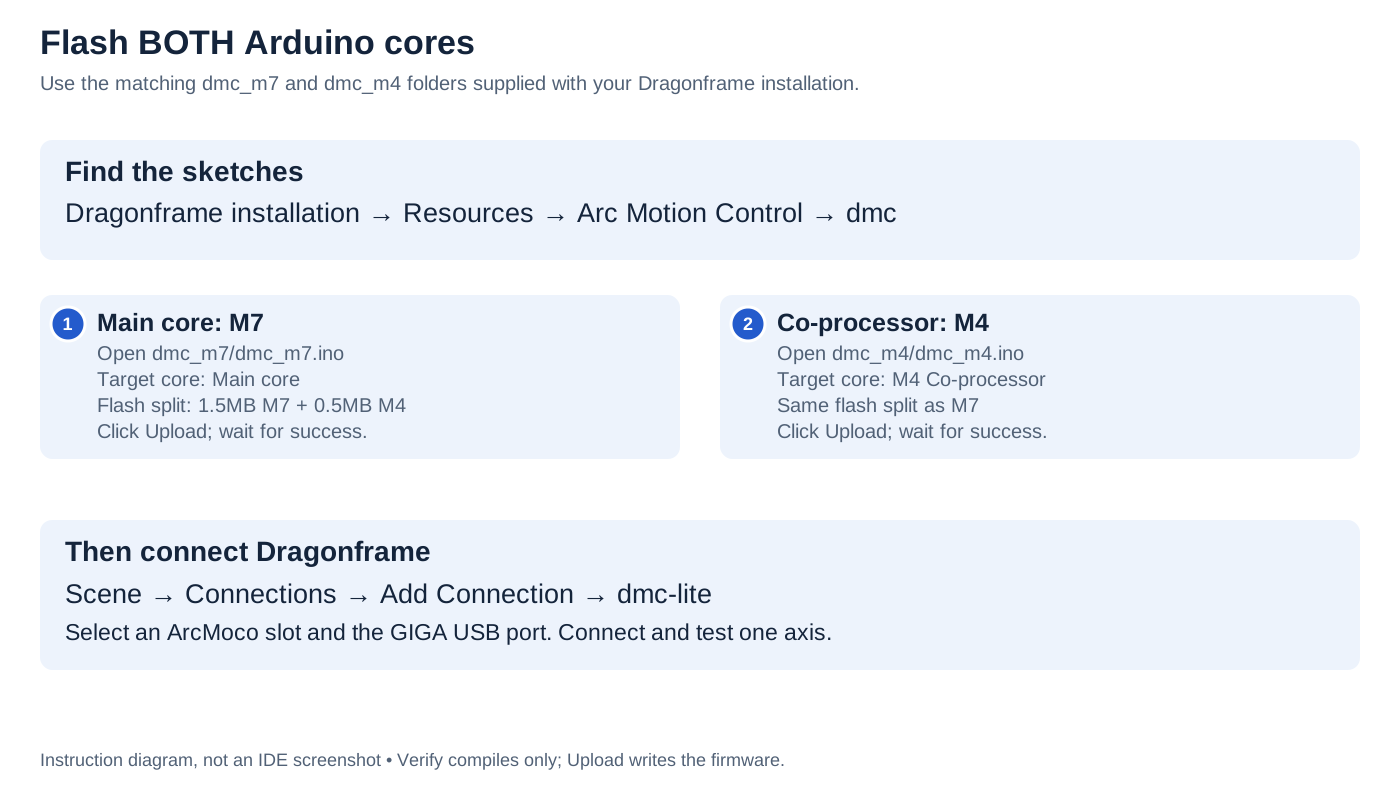
- Find sketches: Dragonframe installation → Resources → Arc Motion Control → dmc.
- Upload M7: open
dmc_m7.ino; target Main core. - Upload M4: open matching
dmc_m4.ino; target M4 Co-processor. - For both: 1.5MB M7 + 0.5MB M4 flash split. Click Upload, not just Verify.
- Connect: Scene → Connections → dmc-lite; choose ArcMoco slot and GIGA port.
1. Find the sketches on your computer
Install Dragonframe first. Its official dmc-lite sketches are included in:
[Dragonframe installation folder]/Resources/Arc Motion Control/dmc/
This location is documented by Dragonframe. Use the installation folder, not the folder where you save scenes or captured images.
macOS
In Finder, open Applications → Dragonframe 2026 → Resources → Arc Motion Control → dmc. On the inspected installation, you can also press Shift–Command–G in Finder and paste:
/Applications/Dragonframe 2026/Resources/Arc Motion Control/dmc/
Replace Dragonframe 2026 with your installed version's folder name if different. This verified path is inside the Dragonframe installation folder; you do not need to open the application's package contents for this layout.
Windows
Find the folder containing your installed Dragonframe program. You can right-click its shortcut, open Properties, and use Open File Location to locate the executable. If a Start-menu shortcut takes you to another shortcut, open that shortcut's file location too.
From the installation folder, open Resources → Arc Motion Control → dmc. The installation may be under C:\Program Files, but the folder name and location depend on the version and installer choices; use your actual installation rather than a hard-coded path.
Linux
Open the directory where Dragonframe is installed, then Resources → Arc Motion Control → dmc. For a packaged installation, use your package manager's installed-file listing to locate dmc_m7.ino if the installation directory is unclear. There is no single Linux installation path assumed by this guide.
Check the folder contents
You should find at least:
dmc/
├── README.rtf
├── dmc_m7/
│   ├── dmc_m7.ino
│   └── config.h
└── dmc_m4/
    ├── dmc_m4.ino
    └── config.h
Other supporting files must stay in place. Some manual editions call the folder dmc-lite; look for the matching dmc_m7 and dmc_m4 folders. If necessary, search your Dragonframe installation for dmc_m7.ino. A DFMoco.ino file is a different firmware and is not the one to use here.
Read the included README.rtf, then copy the entire dmc folder to a writable location such as Documents. Work from this copy so edits survive separately from application updates. Keep the two sketch folders together from the same release; do not copy only the .ino files.
Image placeholder — finding the sketches: Finder and File Explorer views showing the Dragonframe installation,
Resources/Arc Motion Control/dmc, README and both sketch folders. Label the operating system and Dragonframe version.
2. Prepare Arduino IDE and the GIGA
- Install Arduino IDE, then open Tools → Board → Boards Manager (or the Boards Manager sidebar).
- Search for Arduino Mbed OS Giga Boards and install it. The archived V2 sketches compile with version 4.5.0; that is the recorded build baseline, not a hardware-test result.
- Disconnect motor-driver power and external trigger loads. Connect the GIGA's USB-C port to your computer with a data cable.
- Select Tools → Board → Arduino Mbed OS Giga Boards → Arduino GIGA R1. Select the connected board under Tools → Port; the port name differs by computer. If unclear, compare the port list before and after connecting the board.
- Close Dragonframe's connection to the board and any Serial Monitor using the port.
- Before uploading, review the V2 input settings below. Enable/configure SWITCH and E-stop if you intend to use them.
3. Flash the M7 main core
- In Arduino IDE choose File → Open and open
dmc_m7/dmc_m7.inofrom your working copy. - Confirm the GIGA board and USB port are selected.
- Set Tools → Target core → Main core.
- Set Tools → Flash split → 1.5MB M7 + 0.5MB M4.
- Click Upload (right-arrow button). Wait for compilation and upload to finish successfully. Verify (check-mark button) only compiles; it does not flash the board.
4. Flash the M4 co-processor
- Open
dmc_m4/dmc_m4.inofrom the same working copy. - Check the GIGA board and port again; IDE windows can retain different selections.
- Set Tools → Target core → M4 Co-processor.
- Keep Tools → Flash split → 1.5MB M7 + 0.5MB M4.
- Click Upload and wait for successful completion.
| Sketch | Target core | Flash split |
|---|---|---|
dmc_m7.ino |
Main core | 1.5MB M7 + 0.5MB M4 |
dmc_m4.ino |
M4 Co-processor | 1.5MB M7 + 0.5MB M4 |
Both uploads are required. Uploading a sketch to the wrong core or mixing releases does not produce a working matched pair. These steps follow Dragonframe's supplied README; consult it if your release uses different menu wording.
Image placeholder — upload settings: one Arduino IDE view for each sketch, with board, target core, flash split, port and Upload button highlighted. Show the successful upload result separately from compile-only success.
5. Connect and check
Close Serial Monitor. Reconnect/reset as directed by the supplied README, then open Dragonframe: Scene → Connections → Add Connection → dmc-lite, select an ArcMoco slot and the GIGA port, then Connect. Follow the first-axis setup before enabling normal motion.
Record your Dragonframe release, Arduino board-core version and enabled input options. Keep your working copy as the firmware configuration record.
If flashing fails
| Problem | Check |
|---|---|
| No GIGA port | Use a USB data cable and the GIGA USB-C connector; try another computer USB port |
| Port busy | Disconnect Dragonframe and close Serial Monitor or other serial applications |
| Target core or flash split missing | Confirm GIGA board support is installed and Arduino GIGA R1 is selected |
| Missing files during compilation | Restore the complete sketch folders and supporting files from the same Dragonframe installation |
| Upload succeeds but no connection | Confirm both sketches were uploaded to their respective cores with the specified split |
If the GIGA cannot accept an upload, follow Arduino's GIGA recovery guidance. Double-pressing RST enters its bootloader/DFU mode; recheck the port before retrying. Do not change wiring or firmware pin assignments to solve a USB upload failure.
V2 input and output settings
In the GIGA section of M7 config.h, enable the options you intend to use:
#define KILL_SWITCH_PIN D48
#define LOGIC_SWITCH_PIN D49
Do not duplicate existing definitions; uncomment/edit them. Review E-stop polarity before enabling the stop. SWITCH uses a normally open contact to ground. Both features are disabled in the archived prototype configurations.
V2 follows STEP D22/D24…D36, DIR D23/D25…D37, LOG1 D40, LOG2 D41, meter D52 and shutter D53. See the full mapping. Avoid older pin-swapped V1 configurations.
Verify the installation
A serial connection is only the first check. Test each axis slowly in both directions, stop contact open/closed/disconnected, SWITCH action, relay closure, LOG2 and camera contacts before using the rig. A lit input LED does not prove the corresponding firmware option is enabled.
For updates, save your current configuration, read the new release's README and repeat both uploads and the operating checks. Obtain software from Dragonframe and GIGA setup guidance from Arduino.